App Installation Guidelines
Installing the "Sellio Product Options" application when you are using a 2.0 Theme is pretty straightforward!
Follow these steps to enable the "Sellio Product Options app" on your store:
- In your Shopify store admin, go to Online Store
- After that, click on Themes
- On your published theme, click on Customize
- In the top left corner of your screen, click on the third icon "App Embeds"
- Enable Sellio Product Options app embed
- Last step is to click on the Save button on the save bar


Congratulations! You have successfully installed the Sellio Product Options app in your Shopify store.
Please feel free to reach out to our support team at help@sellioapps.com or create a support ticket.
Install Sellio Product Options – Shopify Product Customizer App
Installation Guidelines (Advanced) - with Multi-Currency Support
To integrate the Sellio Product Options app with your Shopify 2.0 theme and ensure seamless multi-currency support, follow these steps:
Installation Steps
-
Access Your Shopify Admin Panel
- Navigate to Shopify Admin.
-
Navigate to Online Store > Themes
- In the left-hand menu, click on Online Store, then select Themes.
-
Customize Your Published Theme
- Find your current published theme and click Customize.

-
Enable App Embed for Sellio Product Options
- In the theme editor, click on the App Embeds icon (⚙️) in the top-left corner.
- Scroll through the list to find Sellio Product Options.
- Toggle the switch to enable the app embed.
-
Save Your Changes
- Click the Save button in the top-right corner to apply the changes.
Configure Multi-Currency Display (Advanced)
If your store utilizes Shopify Markets with multi-currency support, follow these extra steps:
-
Access Theme Code Editor
- Go to Online Store > Themes in your Shopify admin.
- Find your current theme, click on Actions, and select Edit code.

-
Modify Cart Template
- In the code editor, search for your cart template or section files.
- Locate the line:
<dt>:</dt>- Immediately after this line, insert:
<dd class="shopymate-price">- Save the changes.
Screenshot #1:

-
Optional: Additional Configurations
- If you have enabled Shopify Markets along with a currency converter, further adjustments might be required.
- Refer to the detailed screenshots provided in the original installation guide for specific code snippets and placement.
Screenshot #2:

Screenshot #3:

Need Assistance?
- Contact the support team at help@sellioapps.com.
- Submit a ticket through the SellioApps Support Portal.
- For more information or to install the app, visit the Sellio Product Options – Shopify Product Customizer App on the Shopify App Store.
Sellio Product Option App Purpose in Shopify Store
Sellio Product Option App Purpose in Shopify Store
The Sellio Product Options app enhances Shopify stores by allowing merchants to create flexible and customizable product options beyond Shopify’s default limitations.
Key Features
- Add unlimited product options such as dropdowns, checkboxes, radio buttons, text fields, and more
- Create conditional logic to show or hide options based on customer selections
- Enable price add-ons for custom options to increase average order value
- Support bulk option creation and assignment across multiple products
- Provide a better user experience with dynamic and interactive product pages
Benefits for Merchants
- Overcome Shopify’s variant limitations
- Offer personalized and customizable products
- Improve conversion rates with better product configuration
- Save time using bulk management tools
Conclusion
Sellio Product Options empowers Shopify merchants to deliver a more engaging shopping experience by enabling advanced product customization and flexibility, ultimately helping to drive higher sales and customer satisfaction.
Dashboard
From the dashboard, merchants can easily complete the initial setup of the app. The first step is to enable the app within the Shopify Theme Editor. This ensures that the app widgets and product options are properly displayed on the storefront.


Once the app is enabled, merchants can proceed with configuring their product options.
Create Options
Options
The Create Options section allows merchants to build custom product options based on their store requirements. Merchants can create different types of options such as dropdowns, checkboxes, text fields, or other customizable selections that customers can choose from on the product page.
This flexibility allows merchants to offer personalized product choices and enhance the shopping experience for their customers.
Option Sets
After creating individual options, merchants can organize them into Option Sets. An option set allows multiple options to be grouped together and applied to specific products/collections.
Merchants can assign these option sets to selected products, ensuring that all required customization options appear correctly on the product page.
Analytics & Quick Insights
The dashboard also provides analytics and quick insights to help merchants understand the performance of the app.
Merchants can track key metrics such as:
-
Total number of orders placed using product options
-
Total revenue generated through the app
-
Average order value influenced by product options
These insights help merchants measure the impact of customization features on their store performance.
Support & Onboarding
If merchants have any questions, require assistance, or need help with setup, they can easily access the Book a Meeting directly from the dashboard.
Through this link, merchants can schedule a session with App Experts, who will guide them through the app setup, demonstrate its features, and help optimize the configuration for their store.
Setup Options
The Create Option feature allows merchants to add customizable product options that customers can interact with on the product page. This helps merchants offer personalized products and collect additional information from customers during checkout.
Step 1: Click the “New” Button
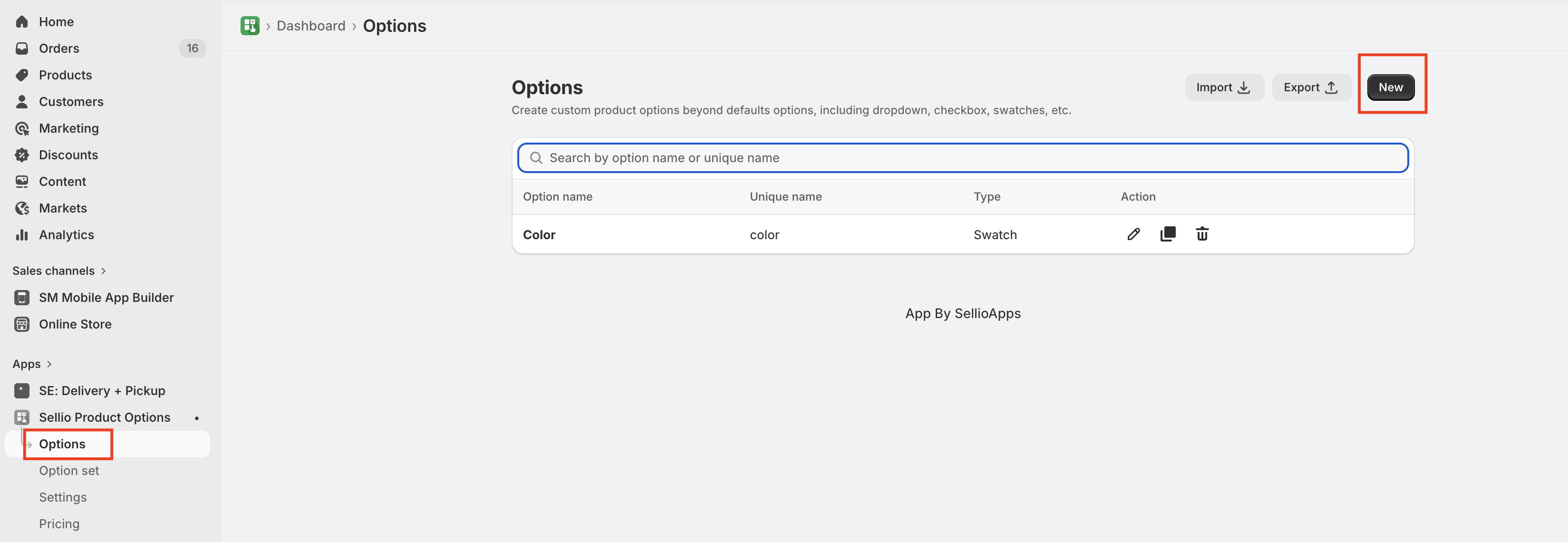
When merchants click the Create Option button, a quick option creation flow appears. This guided process helps merchants easily configure a new option.
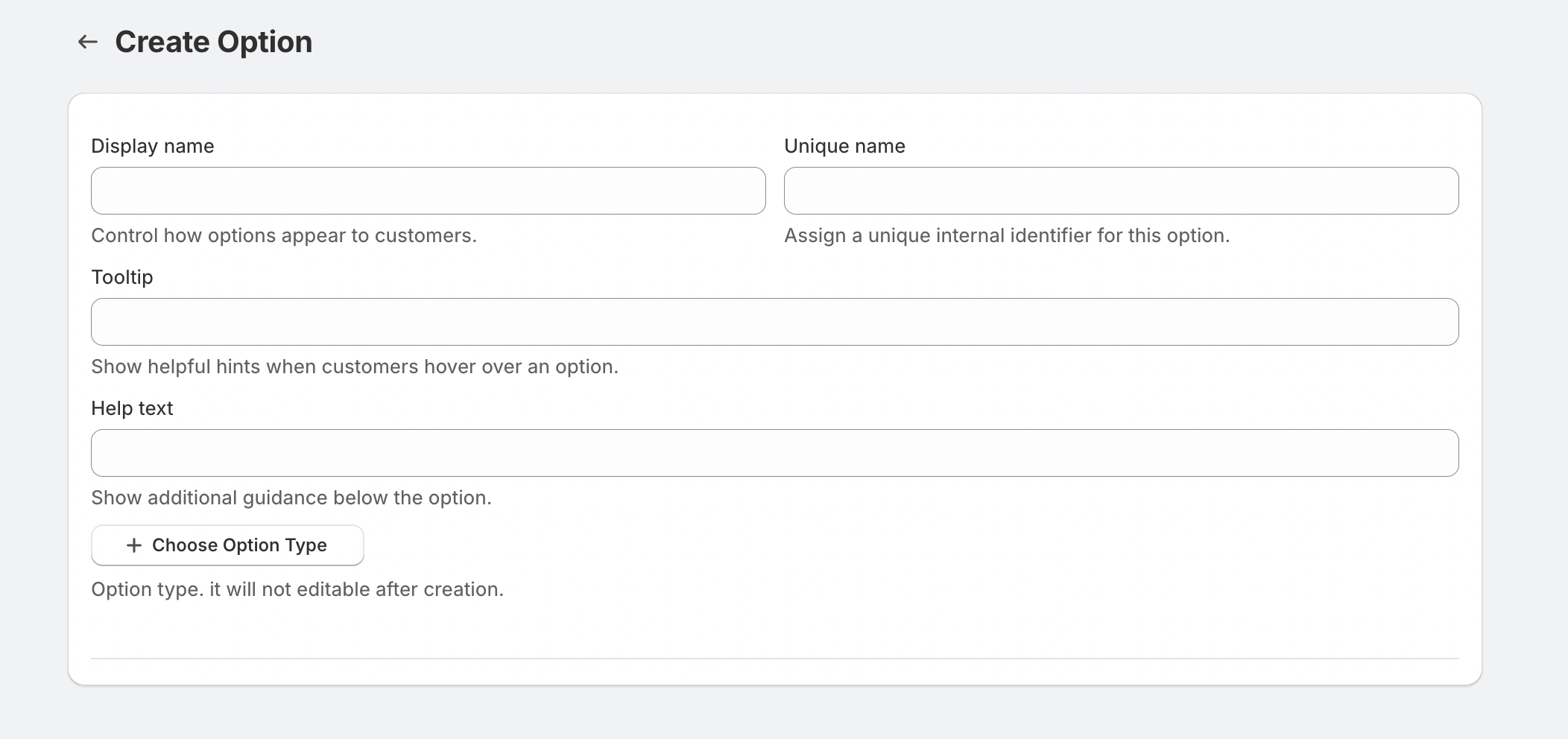
Step 2: Add Option Details
The first step is to define the basic details of the option.
- Option Display Name – This is the label that will be shown to customers on the product page.
- Unique Name – This is an internal identifier for the option and must be unique across all options in the app.
Step 3: Add Tooltip or Help Text (Optional)
Merchants can add tooltips or help text to provide additional information about the option. This helps customers better understand what the option is for before selecting or filling it out.
Step 4: Choose the Option Type
The app provides a wide variety of option types so merchants can collect different kinds of information from customers.
1. Input Value Types
These options allow customers to enter custom information.
Available types include:
- Single Line Text
- Paragraph
- Phone
- Date
- Time
- Hidden Field
- Number Field
2. Single Value Selection Types
These options allow customers to select one value from multiple choices.
Available types include:
- Swatches
- Radio Buttons
- Dropdown
- Color / Image Dropdown
3. Multiple Value Selection Types
These allow customers to select more than one option.
Available types include:
- Checkboxes
- Multiple Selection Dropdown
- Swatches
- Multi-Quantity Selector
4. Additional Option Types
The app also provides several advanced option types for enhanced product customization.
These include:
- Short Text Group
- Information Popup
- Font Selector
- Formula-Based Option
- Color Picker
- File Upload Option
Merchants can choose the option type that best suits their product requirements and then configure the option values accordingly.
Step 5: Assign Options Using Option Sets
Once the options are created, merchants can organize them into Option Sets and assign them to specific products.
Merchants can also configure conditional logic within option sets to show or hide certain options based on customer selections or predefined rules.
This flexibility allows merchants to build dynamic and highly customizable product experiences.
Support
For assistance, please contact us at help@sellioapps.com or submit a Support Ticket.
Setup Option Set
Once all the required options are created, the next step is to organize them using Option Sets. An Option Set allows merchants to group multiple options together and assign them to specific products or collections. This makes it easier to manage and display product customization options on the storefront.
Option Sets help merchants control how options appear, how they behave together, and where they are displayed within the store.
What is an Option Set?
An Option Set is a container that holds multiple options and applies them to selected products.
Instead of assigning options individually to each product, merchants can group related options into one set and apply them to multiple products at once. This simplifies option management and ensures consistency across product pages.
For example, a merchant selling customizable products can create an option set that includes:
- Custom text input
- Color selection
- File upload option
This entire set can then be assigned to specific products where customization is required.
How to Create an Option Set
To create an option set, follow the steps below.
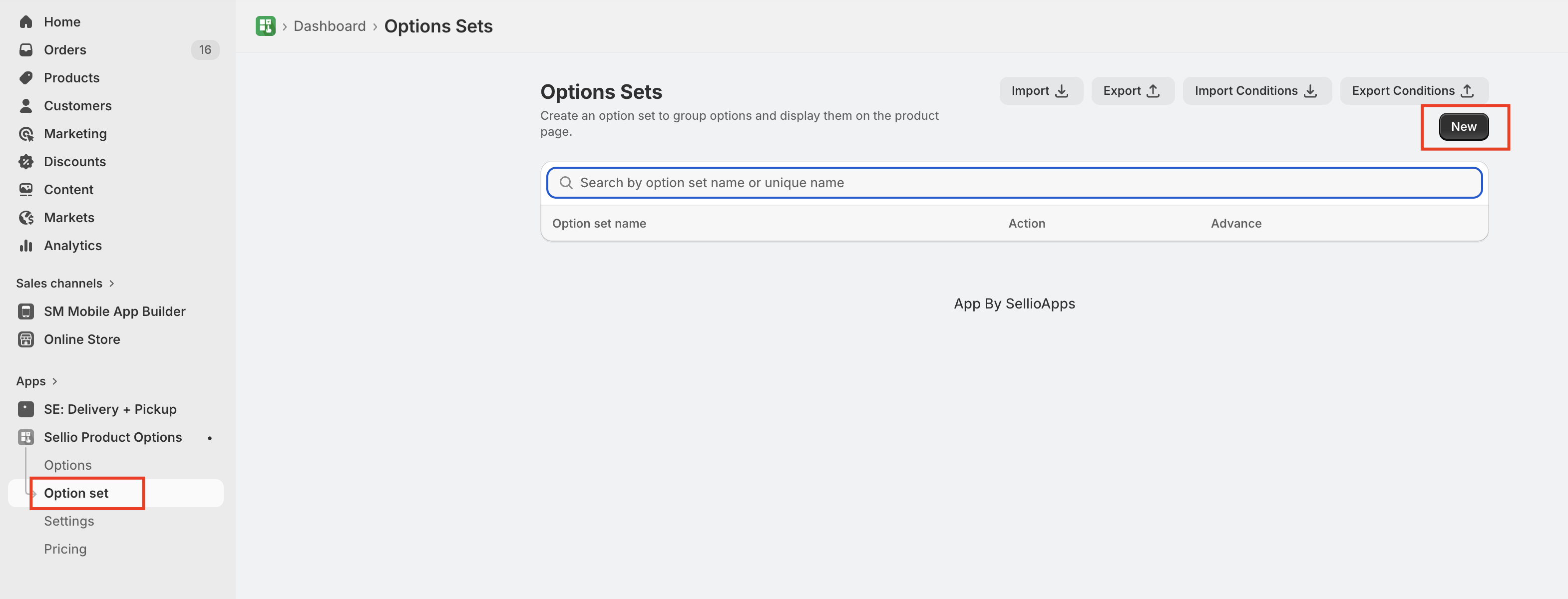
Step 1: Navigate to Option Sets
From the app dashboard, go to the Option Sets section and click the Create Option Set button.
This will open the configuration page where merchants can define the settings for the new option set.
Step 2: Add Option Set Details
Merchants must provide basic information for the option set.
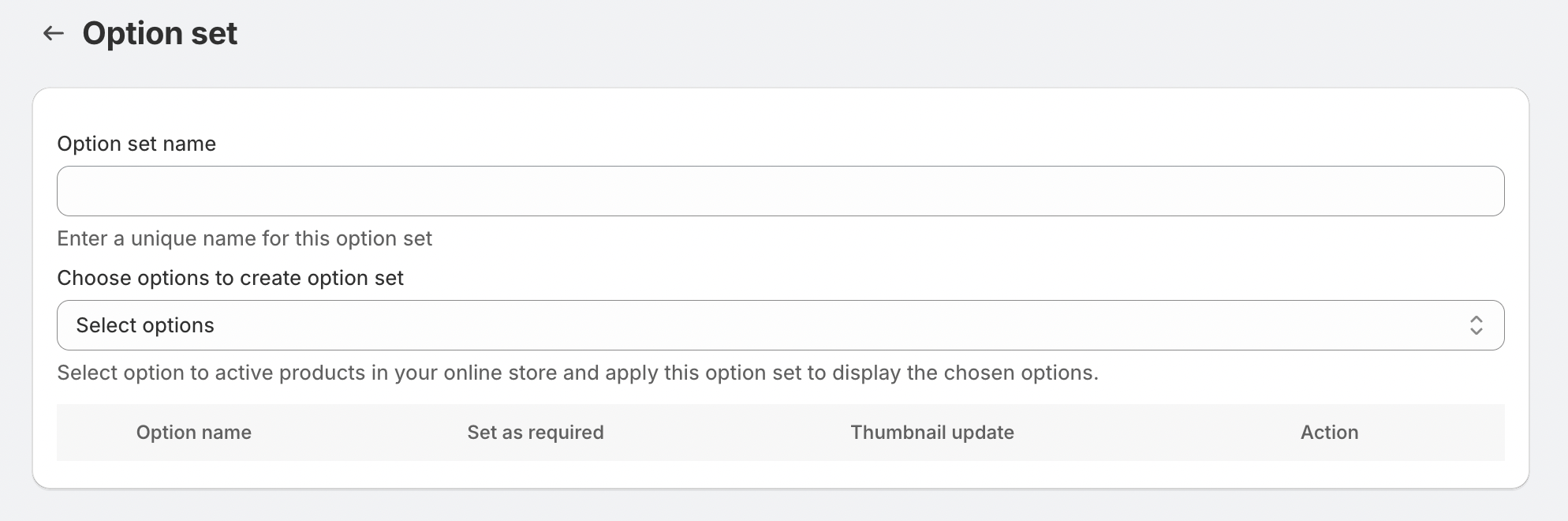
Option Set Name
The option set name is used internally to identify the group of options. This name will help merchants easily locate and manage option sets in the app dashboard.
For example:
- Product Customization
- Gift Personalization Options
- Engraving Options
Step 3: Add Options to the Option Set
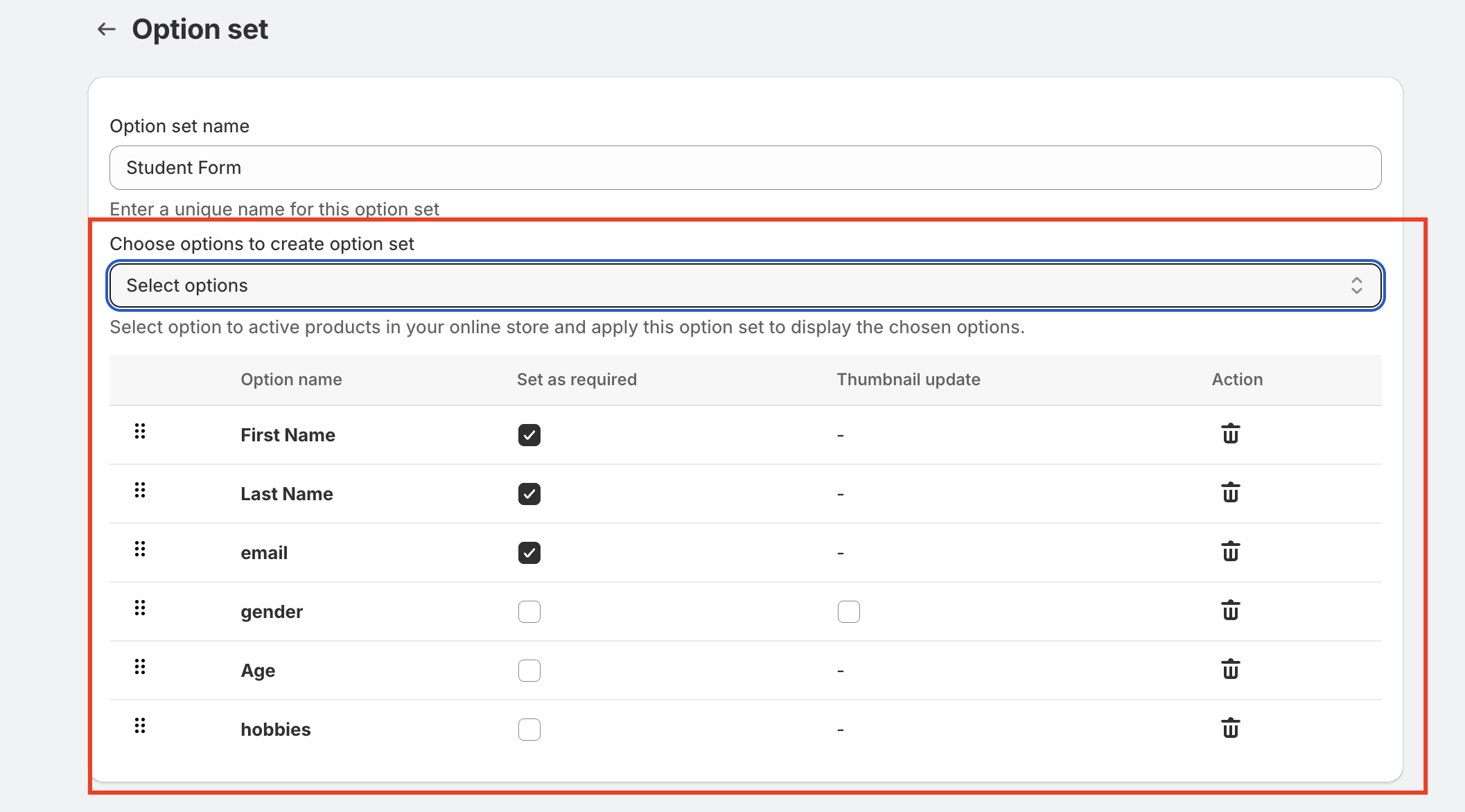
After creating the option set, merchants can begin adding the options that were previously created in the Options section.
Merchants simply select the required options from the available list and add them to the option set.
Once added, the options will appear in the order they will be displayed on the product page.
Merchants can also reorder the options to control how they appear to customers.
For example:
- Product Color
- Custom Text
- Font Selection
- File Upload
This ensures a logical and user-friendly experience for customers.
Step 4: Assign Products to the Option Set
After adding the required options, merchants need to assign the option set to products.
The app provides flexible ways to assign option sets:
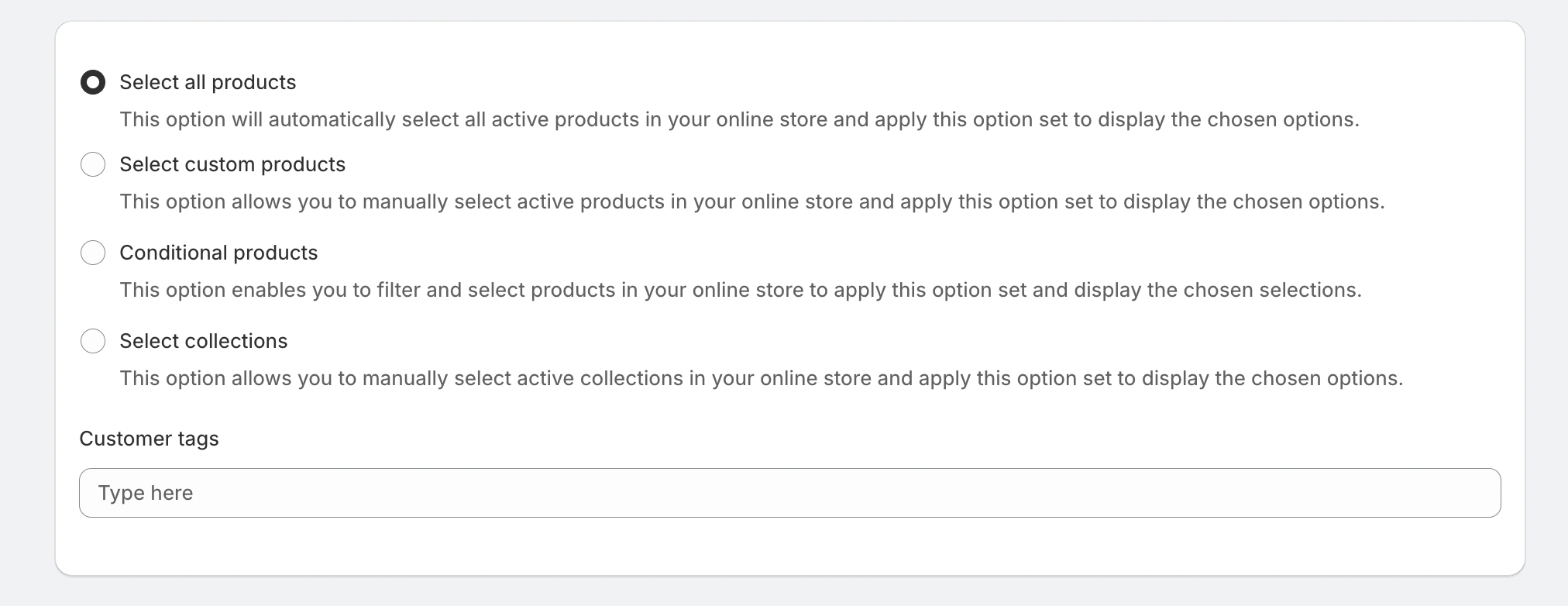
Assign by Products
Merchants can select specific products or all products where the option set should appear.
Assign by Collection
Merchants can apply the option set to an entire collection, making it easier to manage large product catalogs.
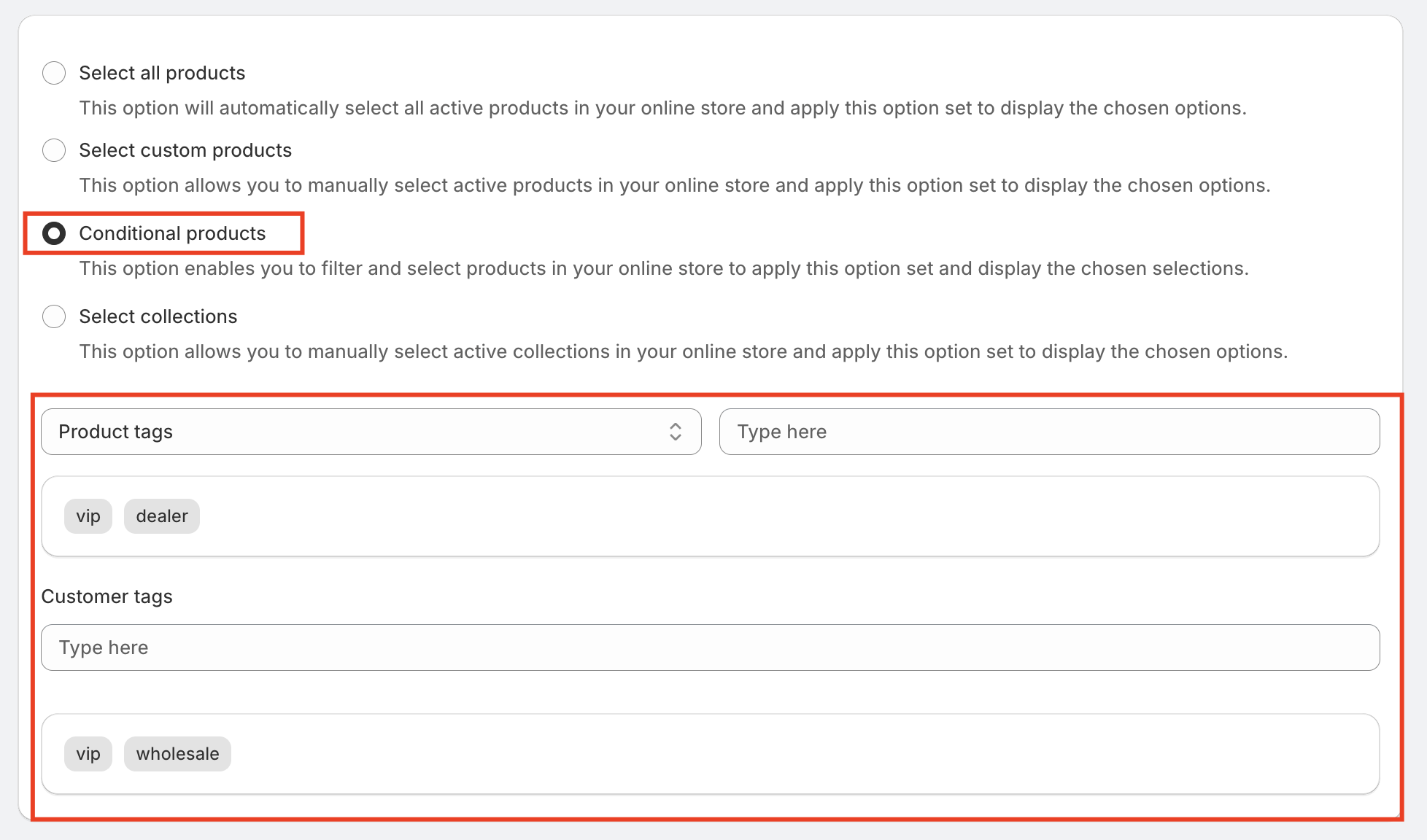
Assign by Conditional Logic
Merchants can assign products based on specific product vendor, tag, or type.
Once assigned, the selected options will automatically appear on the product page for those products.

Step 5: Apply Conditional Logic (Optional)
Option sets also support conditional logic, allowing merchants to create dynamic product forms.
With conditional logic, certain options can be shown or hidden based on customer selections.
For example:
- If a customer selects "Add Custom Engraving", a text input field will appear.
- If a customer selects "Upload Logo", the file upload option will appear.
This keeps the product page clean and only displays relevant options to customers.
Next Steps
After creating option sets, merchants can further enhance product customization by:
- Setting up conditional logic rules
- Applying advanced option pricing
- Customizing option styling on the product page
These features help merchants build powerful and flexible product customization experiences for their Shopify store.
Setup Conditions
The Conditions feature allows merchants to create dynamic product customization experiences by showing or hiding options based on customer selections.
Instead of displaying all options at once, merchants can set up rules that control when specific options should appear. This keeps the product page clean, simple, and easier for customers to use.
For example, certain options may only be relevant when a customer selects a specific product feature. Using conditions, merchants can automatically show the right options at the right time.
Setting up conditions is quick and simple.
Steps to Set Up Conditions
- Go to the Option Sets section in the app.
- Open the specific Option Set where you want to apply the condition.
- Click on Set Up Conditions.
- Select New Condition.
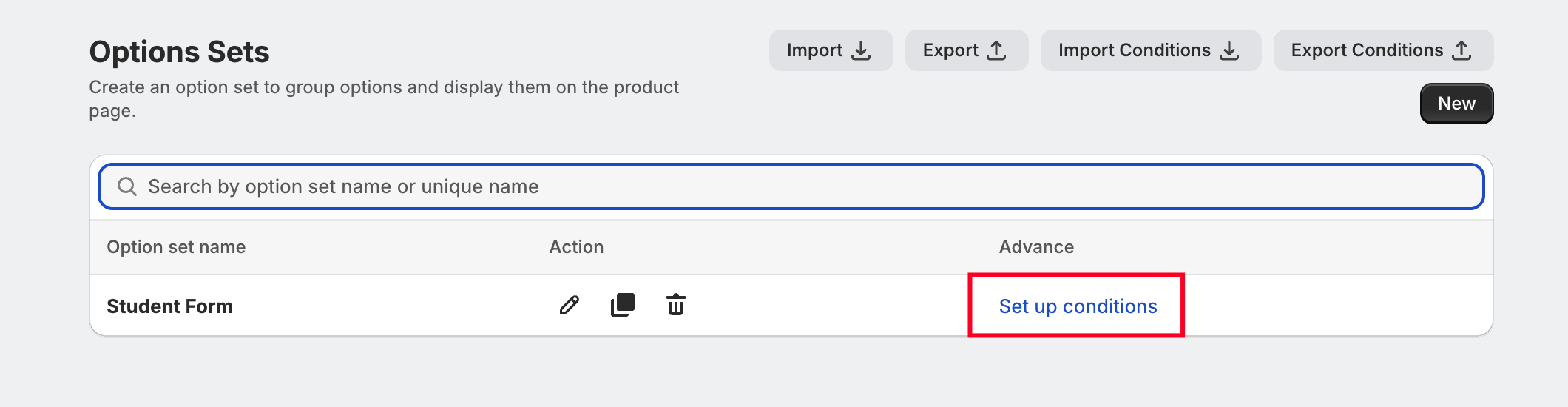
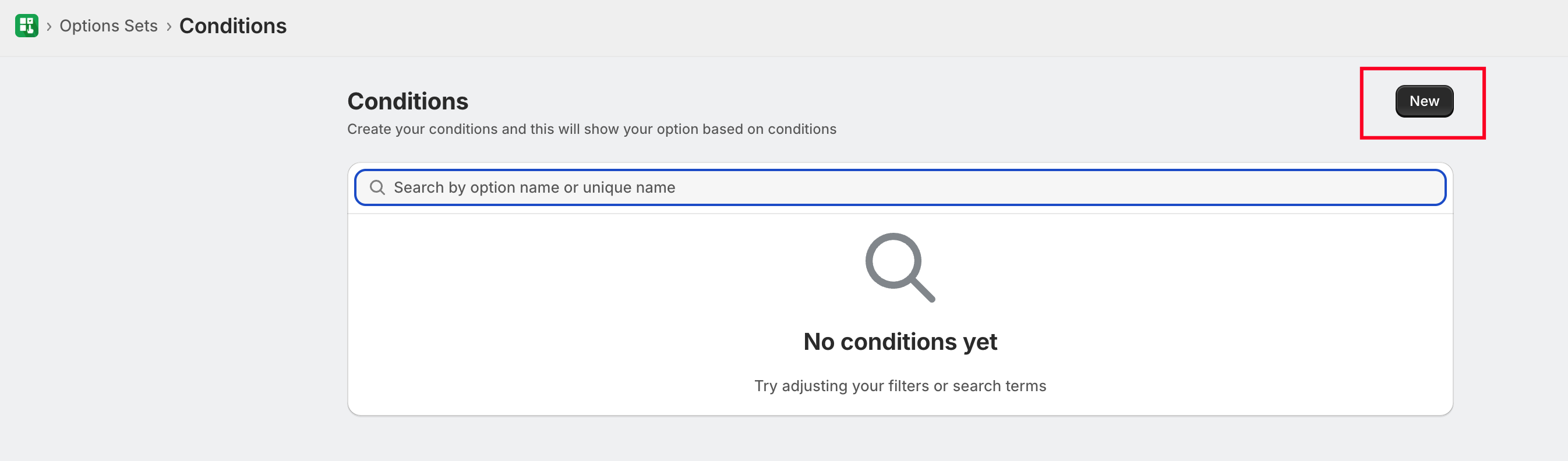
This will open the condition builder where merchants can define the rules and actions.
Important Note
Conditions can only be created based on selection-type options, such as:
- Dropdown
- Radio buttons
- Swatches
- Checkboxes
- Multi-select dropdown
Conditions cannot be created based on input-type options, such as:
- Text fields
- Paragraph fields
- Phone
- Date or time inputs
This is because input fields collect user data rather than predefined selections.
How Conditions Work
Each condition includes two main parts:
1. Rule (Trigger)
The rule defines when the condition should activate based on the customer's selection.
2. Action (Result)
The action determines what should happen when the rule is triggered, such as showing or hiding another option.
This system helps create smart and interactive product forms.
Example: Showing a Custom Text Field
Let’s look at a simple example to understand how conditions work.
A merchant sells customizable gifts. Customers can choose whether they want engraving on the product.
Step 1: Create the Main Option
- Option Name: Add Engraving
- Option Type: Radio Buttons
- Choices:
- Yes
- No
Step 2: Create the Second Option
- Option Name: Enter Engraving Text
- Option Type: Single Line Text
This option allows customers to enter the message they want engraved.
Step 3: Set the Condition
Now the merchant sets a rule so the text field only appears when needed.
Condition Rule:
If Add Engraving = Yes
Condition Action:
Show "Enter Engraving Text" option
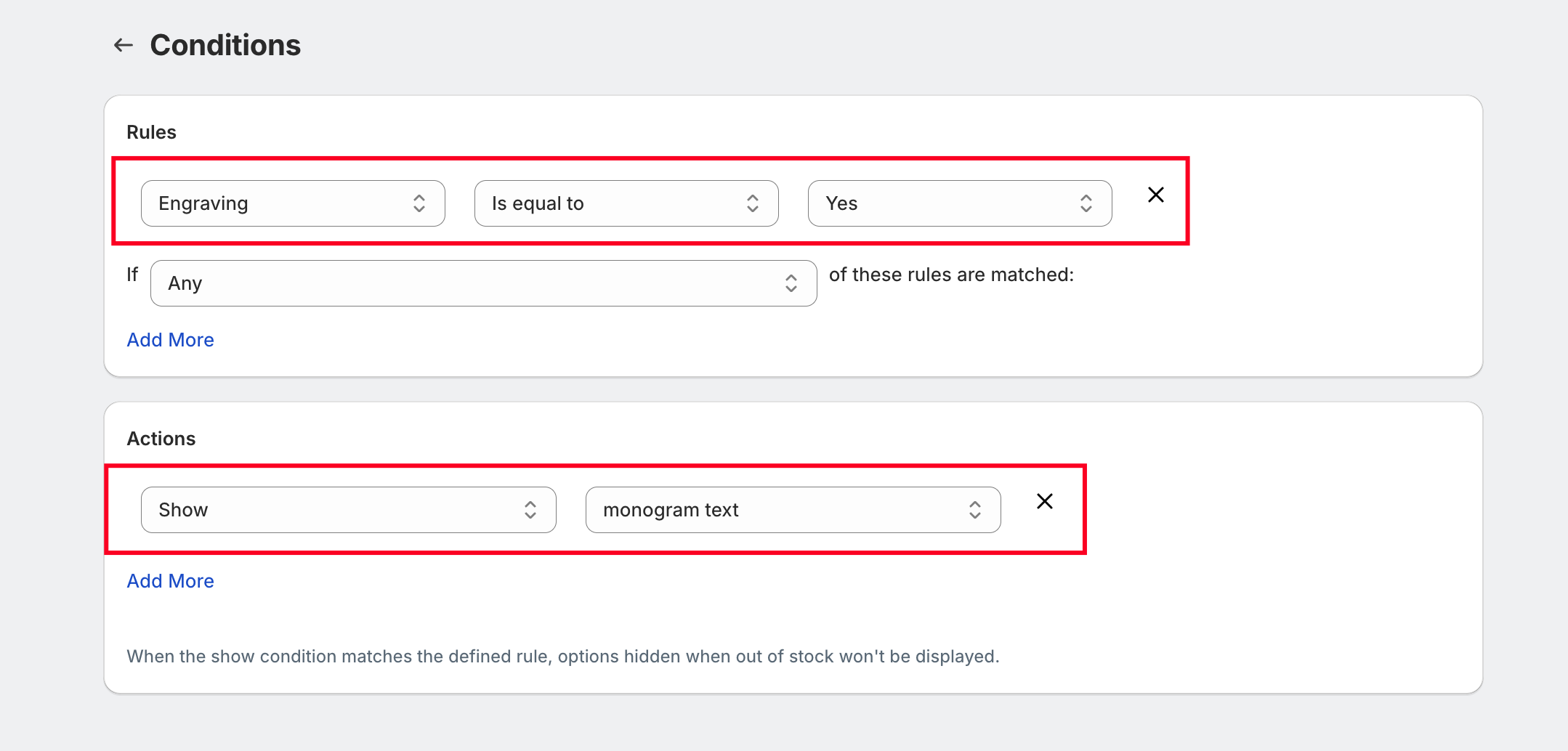
If the customer selects Yes for engraving, the text field automatically appears so they can enter their message.
If they select No, the text field remains hidden.
This makes the product page cleaner and easier to navigate.
App Settings
The App Settings page is divided into multiple customization sections. Each section controls a specific part of the product options widget displayed on the product page.
On the right side, there is a live preview panel where you can instantly see how your customization will appear to customers.
This allows merchants to adjust the styling and configuration before applying it to their Shopify store.
1. Options Block Title and Customisation
This section allows you to customize the main title of the product options block displayed on the product page.
What you can customize
- Options block title text
- Font style
- Font weight
- Font size
- Alignment
- Colors
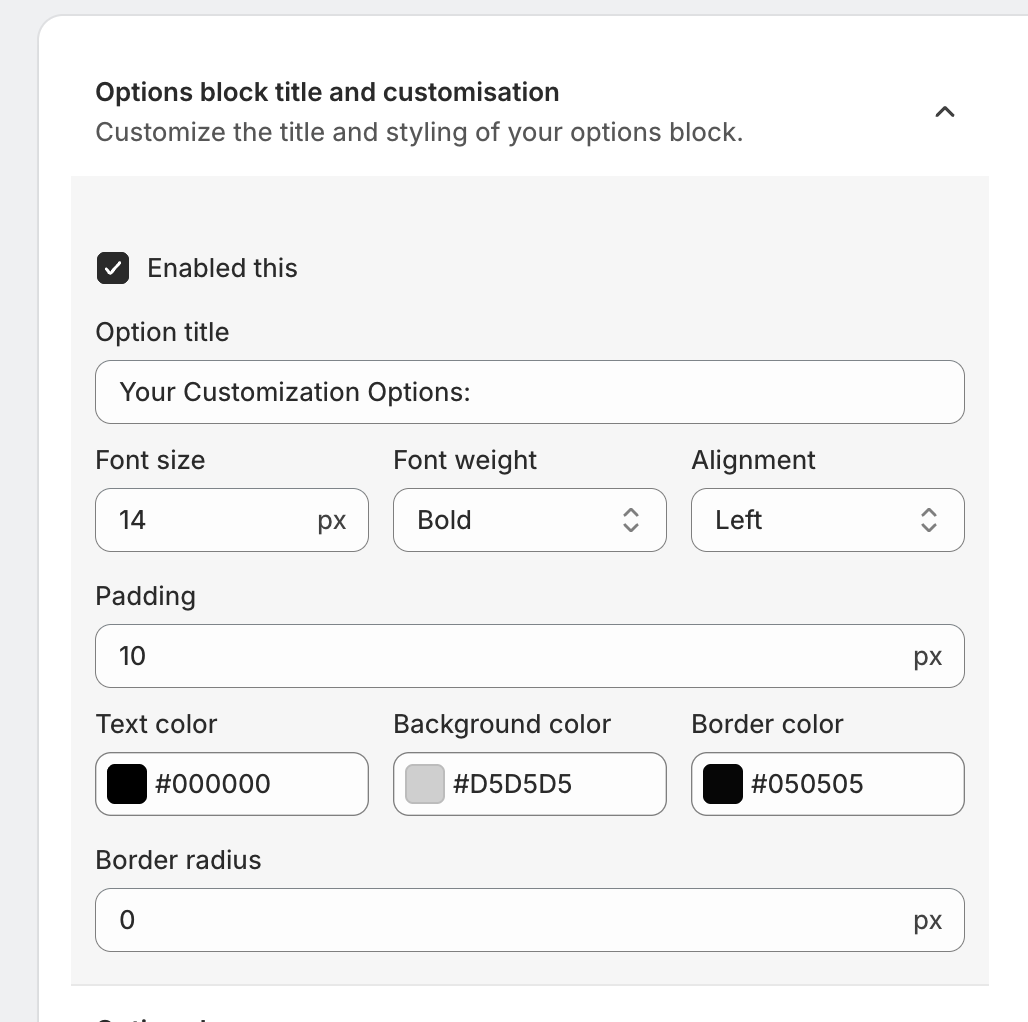
Example
Instead of the default title like:
“Your Customization Options”
You can change it to:
- "Customize Your Product"
- "Select Add-Ons"
- "Personalization Options"
This helps merchants align the options section with their brand tone.
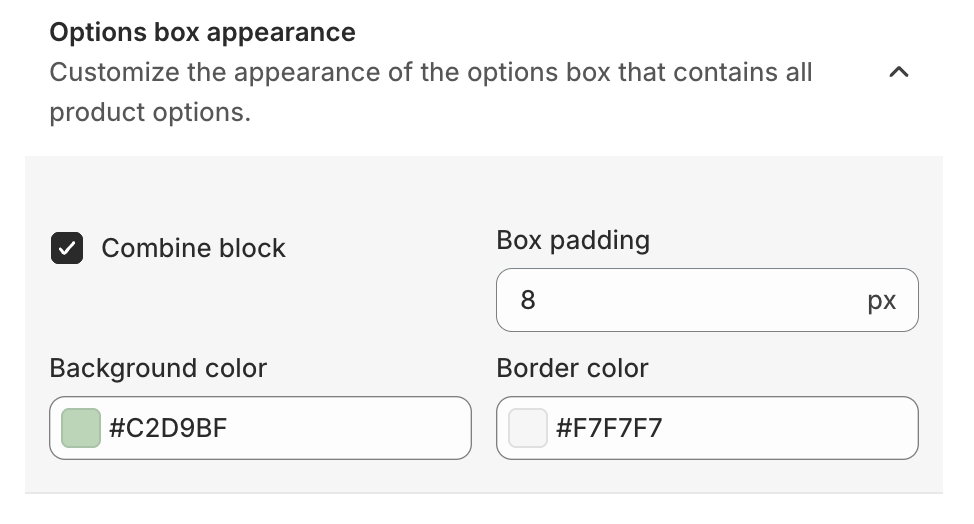
2. Options Box Appearance
The Options Box Appearance settings control the design of the container that holds all product options.
Customizable elements
- Background color
- Border color
- Padding
3. Options Display Text Customisation
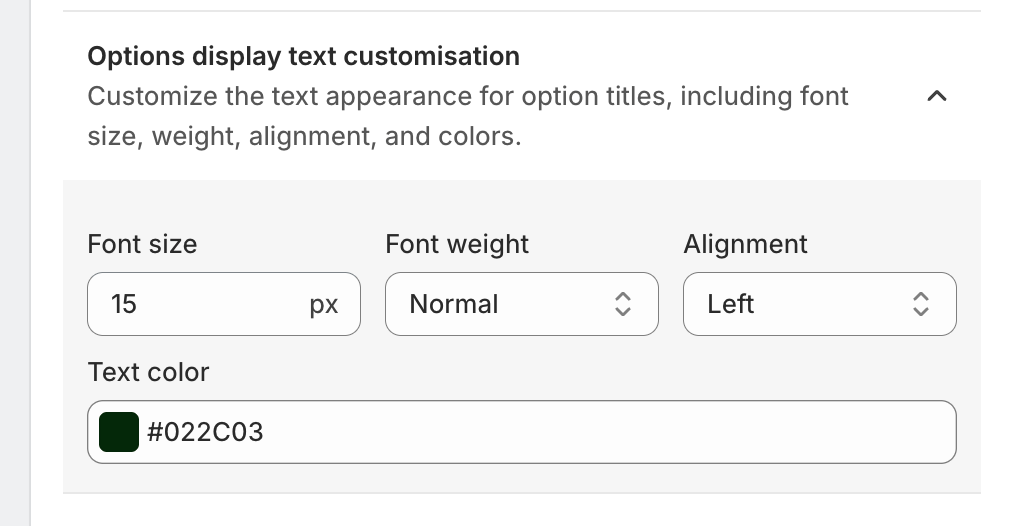
This section controls the styling of option titles displayed above each product option.
Elements you can customize
- Font size
- Font weight
- Text alignment
- Text color
4. Options Value Text Customisation
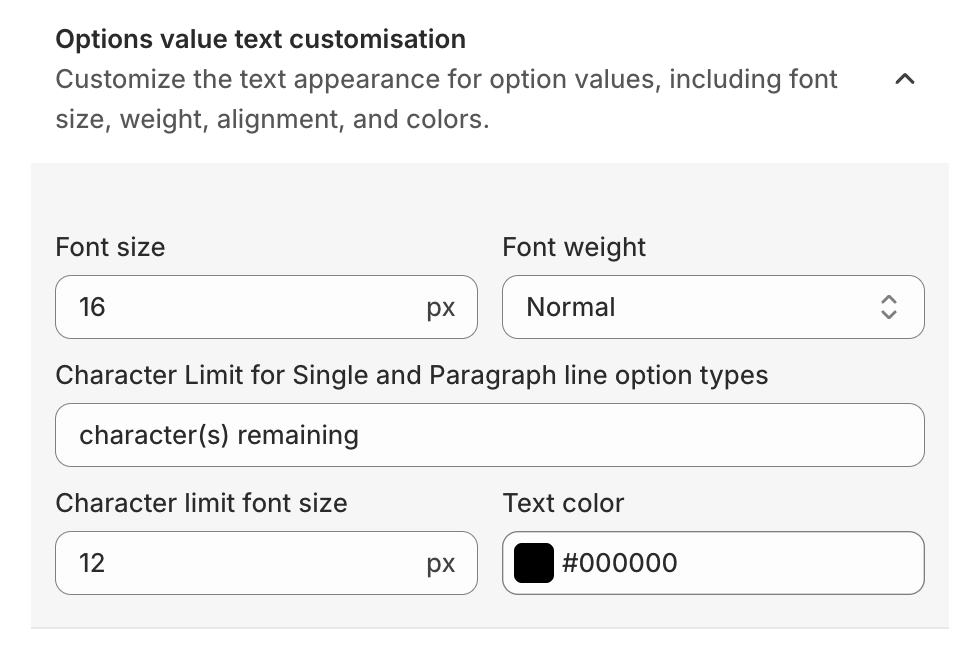
The Options Value Text Customisation settings control how the option values appear. Option values are the selectable items inside an option.
5. Options Help Text Customisation
Help text appears below an option title to provide additional guidance to customers.
Example
Option: Custom Text
Help text: Maximum 10 characters allowed.
Customizable elements
- Help text font size
- Font color
- Font weight
6. Options Tooltip Customisation
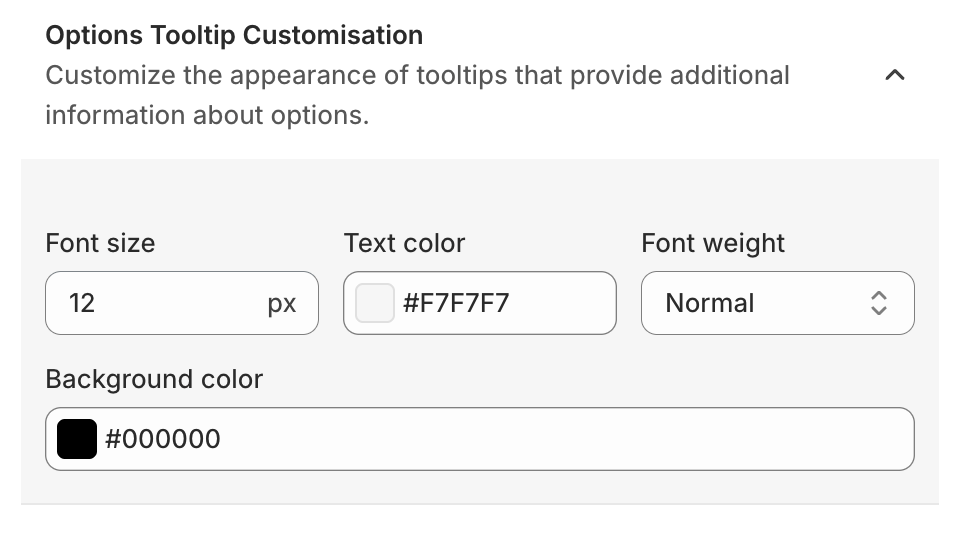
Tooltips provide extra information about product options. When customers hover over the tooltip icon, they can see additional details.
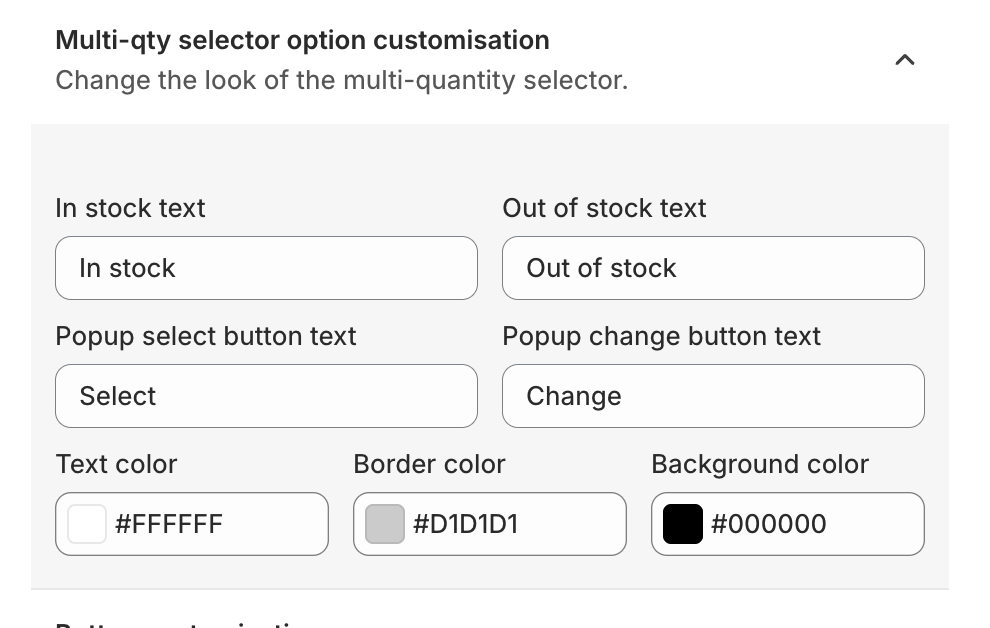
7. Multi-Quantity Selector Option Customisation
Some product options allow customers to select multiple quantities. This section allows merchants to customize the appearance of the multi-quantity selector.
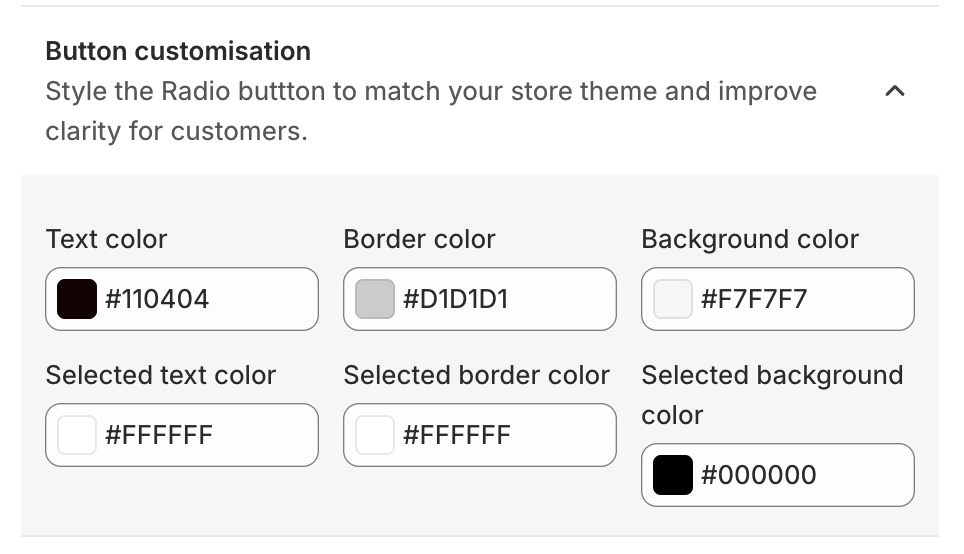
8. Button Customisation
The Button Customisation settings allow merchants to style option buttons such as radio buttons or selectable options.
9. Advanced Settings
The Advanced Settings section provides additional customization capabilities for developers or advanced users.
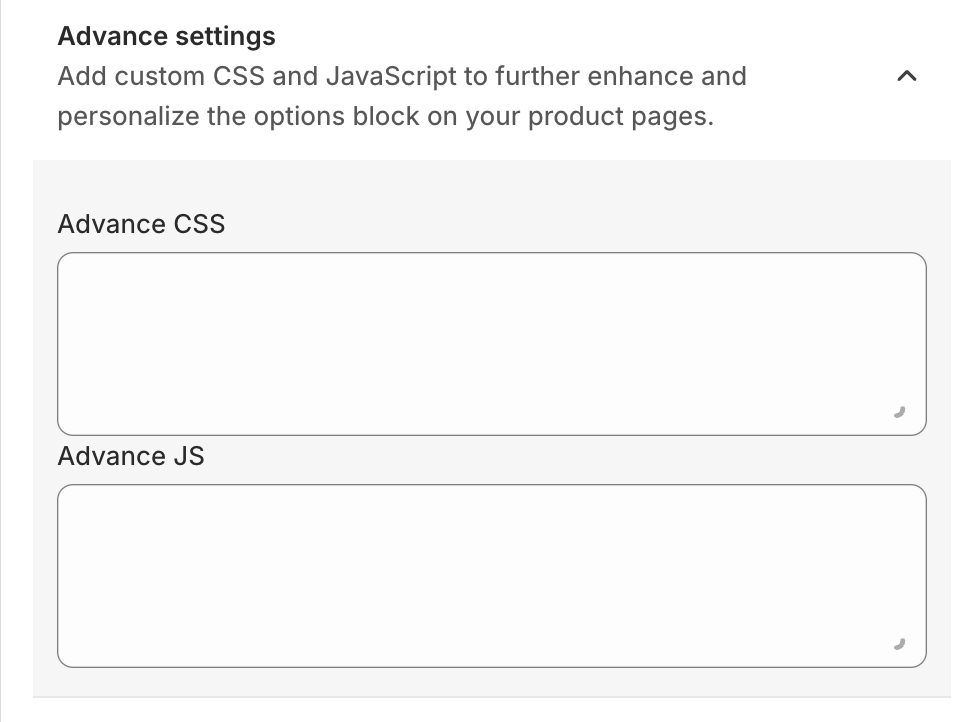
Merchants can add
- Custom CSS
- Custom JavaScript
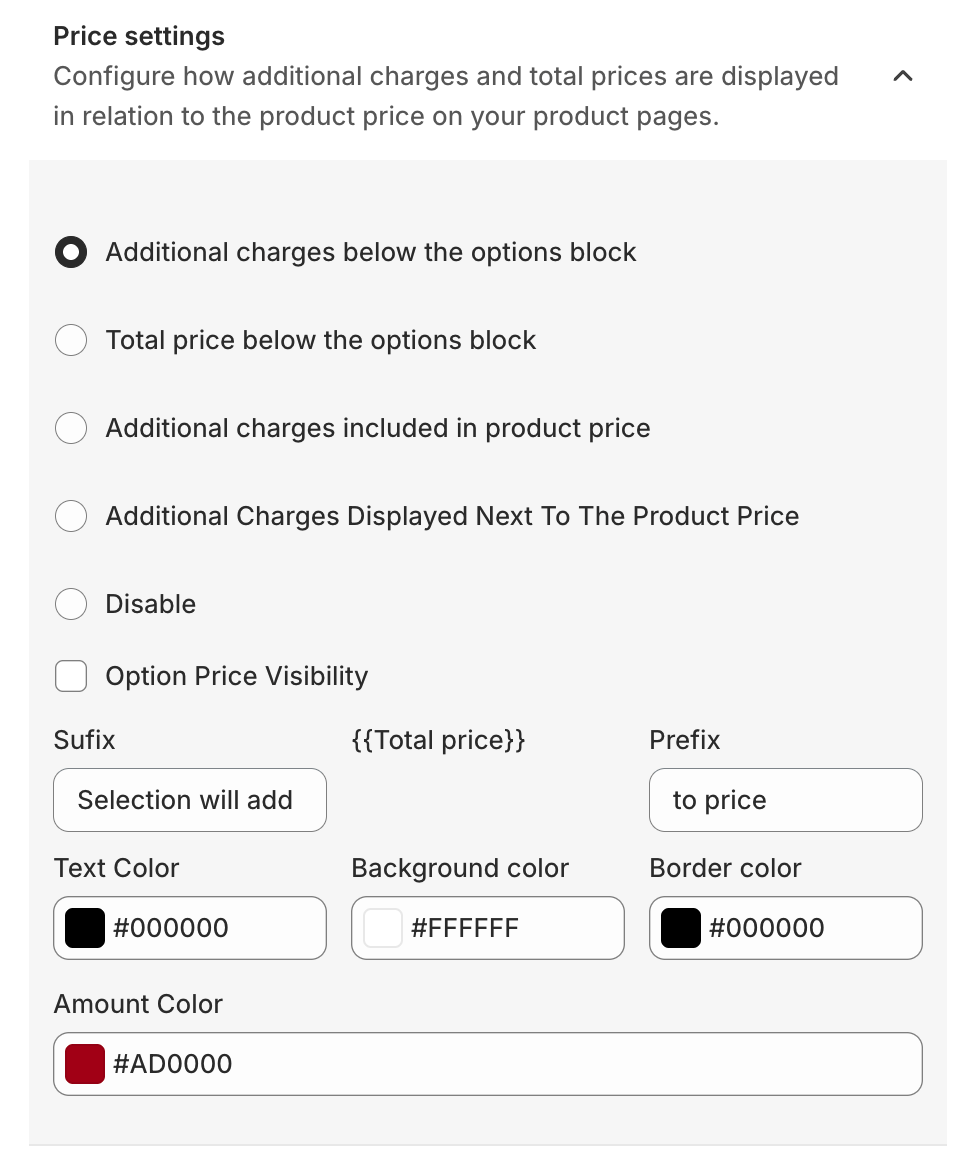
10. Price Settings
The Price Settings section controls how additional option prices are displayed on the product page.
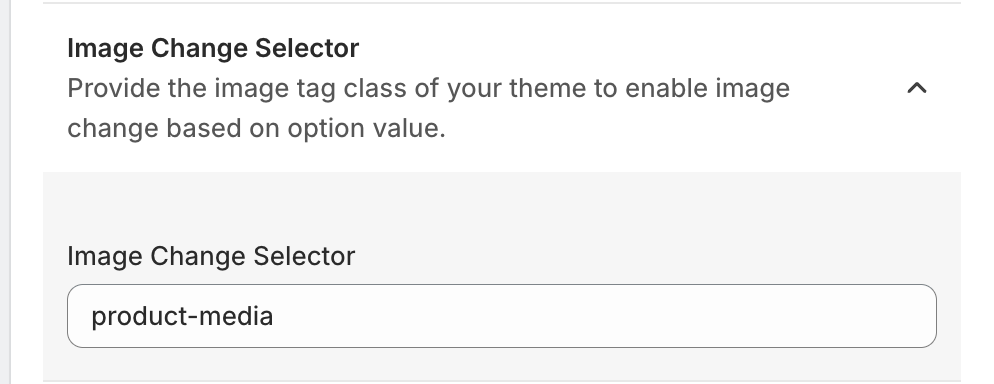
11. Image Change Selector
The Image Change Selector allows product images to change automatically based on the option selected.
When a customer selects Red, the product image automatically switches to the red version.
To enable this, merchants must provide the image tag class used in their Shopify theme.
This feature improves the visual shopping experience.
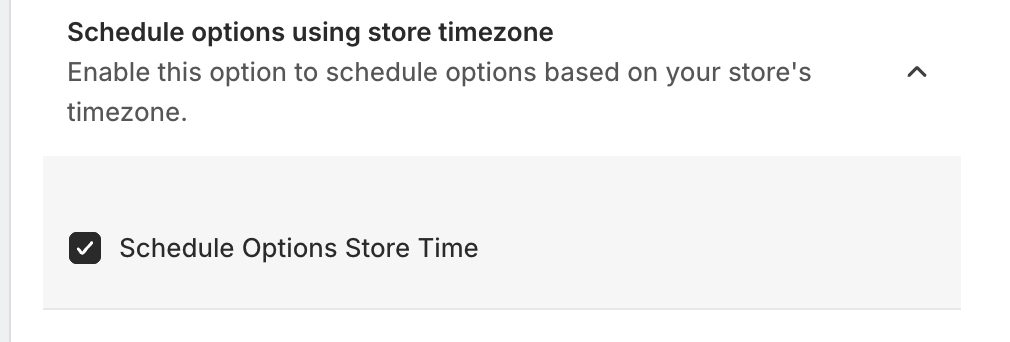
12. Schedule Options Using Store Timezone
This feature allows merchants to schedule product options based on their store's timezone.
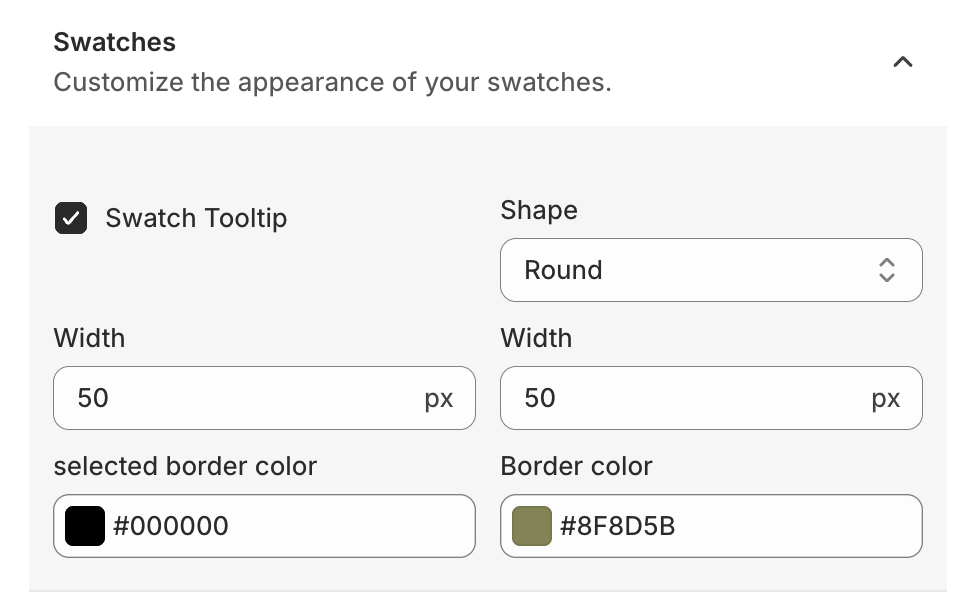
13. Swatches Customisation
The Swatches settings allow merchants to customize the appearance of color or image swatches.